Category: Apps & Interfaces

  • How to Make an App: A Step-by-Step Guide

    How to Make an App: A Step-by-Step Guide

    Building a mobile app involves several stages, from conceptualization to launch. Whether you’re a seasoned developer or a beginner, understanding the essential steps in creating a mobile app is crucial. This guide simplifies the process, offering clear directions on how to make an app effectively.

    What Are the First Steps in Building a Mobile App?

    The initial phase in building a mobile app involves careful planning and research. Begin by identifying your app’s purpose and target audience. Conduct market research to understand your competition and identify any gaps your app could fill. Create a detailed app specification document outlining features, user stories, and a basic wireframe. This document will guide you throughout the development process.

    How Do I Design and Develop My App?

    Once you have a clear plan, focus on designing your app. User experience (UX) and user interface (UI) design are critical components. Use tools like Sketch or Figma to create wireframes and prototypes. Ensure the design is intuitive and provides a seamless experience.

    Development follows design. Choose a platform: native (iOS or Android), hybrid, or cross-platform development. Each option has its pros and cons, so select one based on your app’s requirements and budget. For native apps, Swift (iOS) and Kotlin (Android) are popular languages, while React Native and Flutter are excellent for cross-platform development.

    What Tools Can I Use for Creating a Mobile App?

    Several tools can assist in creating a mobile app. Integrated Development Environments (IDEs) like Xcode for iOS and Android Studio for Android are essential for native app development. For cross-platform apps, consider using React Native, which allows you to use JavaScript, or Flutter, which uses Dart. Additionally, platforms like Xamarin and Appcelerator offer powerful development solutions.

    For design, tools such as Adobe XD, Figma, and Sketch provide excellent features for prototyping and collaboration. Incorporate analytics tools like Firebase or Mixpanel to track user engagement and app performance post-launch.

    How to Test and Launch Your Mobile App

    Testing is a crucial step before launching your mobile app. Perform both functional and non-functional testing to ensure your app works as intended. Use tools like TestFlight for iOS and Firebase Test Lab for Android to conduct beta testing. This phase allows you to gather user feedback and make necessary adjustments.

    Once testing is complete and any issues are resolved, prepare for launch. Follow the submission guidelines for App Store and Google Play Store, ensuring your app complies with their requirements. Create engaging app descriptions, screenshots, and promotional materials to attract potential users. Post-launch, focus on marketing strategies and monitor user feedback to drive improvements and updates.

    Building a mobile app is a complex journey, but by following these steps and utilizing the right tools, you can create a successful app that meets the needs of your target audience.

  • How to Enable Running Scripts on Your System

    How to Enable Running Scripts on Your System

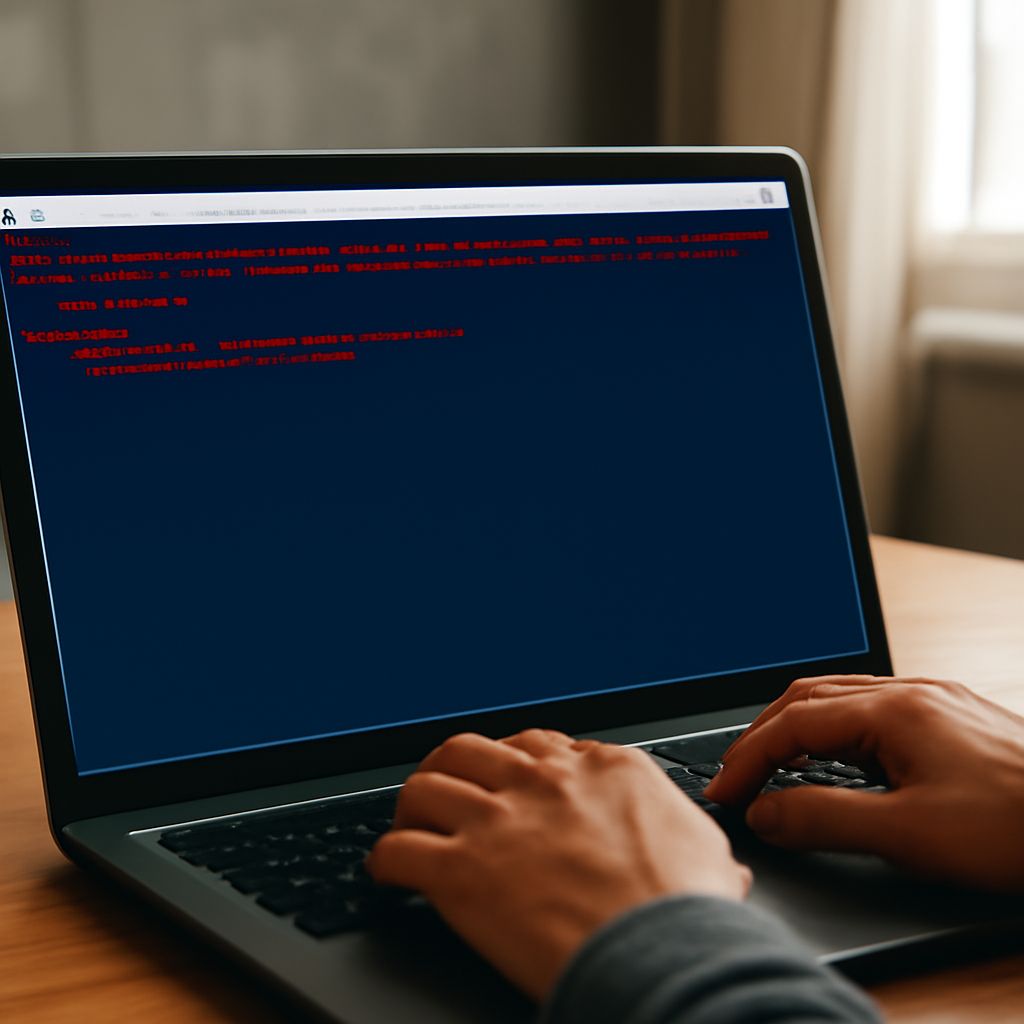
    Experiencing an error stating that running scripts is disabled on your system can be a frustrating roadblock. This common issue arises primarily due to security settings, but it’s a scenario that can be resolved by following a few simple steps. Read on to learn how to enable running scripts on your system and get past the error: “cannot be loaded because running scripts is disabled on this system.”

    Why Are Running Scripts Disabled on My System?

    The restriction on running scripts is primarily a security measure implemented by your operating system. By default, Windows PowerShell has a restricted execution policy to prevent the execution of potentially harmful scripts. This security feature ensures that only trusted scripts are allowed to run, protecting your system from malicious attacks.

    If you attempt to run a script and encounter the error message, “cannot be loaded because running scripts is disabled on this system,” it indicates that your system’s execution policy is set to a level that prohibits running the script. Understanding this can help you make informed decisions about whether to change these settings.

    How to Enable Running Scripts via PowerShell

    To enable running scripts, you need to modify the execution policy using Windows PowerShell. Follow these steps to change the execution policy and allow scripts to run:

    1. Press Windows + X and select Windows PowerShell (Admin) from the menu. Running PowerShell as an administrator is crucial for changing execution policies.
    2. In the PowerShell window, type the following command and press Enter:
      Set-ExecutionPolicy RemoteSigned
    3. When prompted, type Y and press Enter to confirm the change.

    The RemoteSigned policy allows scripts created on your local computer to run, while those downloaded from the internet must be signed by a trusted publisher. This setting provides a balance between flexibility and security.

    Troubleshooting: Common Issues and Solutions

    Even after changing the execution policy, you might encounter issues. Here are some common problems and their solutions:

    • Error persists after policy change: Ensure that PowerShell was run with administrative privileges. Without administrative rights, the execution policy change will not be applied system-wide.
    • Script not executing from a network drive: If your script is located on a network drive, ensure the drive is properly mapped. Use the full path or copy the script to a local drive if issues persist.
    • RemoteSigned policy still too restrictive: For more permissive settings, you can use Unrestricted. However, this setting is less secure and should be used with caution. Set it using:
      Set-ExecutionPolicy Unrestricted

      Always revert to a stricter policy after executing the necessary scripts to maintain system security.

    • Execution policy changes not persisting: Confirm that no group policies are overriding your settings. This is common in organizational environments where system settings are centrally managed.

    By understanding and adjusting your system’s execution policy, you can overcome the restriction that prevents scripts from running. Always remain cautious of the scripts you execute, ensuring they come from reliable sources to protect your system’s integrity.

  • App vs Widget: What Is the Difference?

    App vs Widget: What Is the Difference?

    In an app vs widget comparison, an app is the complete interactive product, while a widget is a focused interface for viewing information or performing a limited action. Use the app for sustained workflows and the widget for glanceable updates, simple controls, or fast access.

    The key difference is not simply size. An app can provide a full interface and operate as the main destination for a task. A widget usually appears inside another environment, such as a phone home screen, desktop, dashboard, or website, and exposes selected data or actions from a larger service.

    App vs Widget: What an App Is and How It Works

    An app is software built to handle a broad set of tasks within its own interface. It may be installed on a phone or computer, opened from an icon or link, and used independently of any particular screen layout. Although many apps rely on cloud services, they remain the primary place where users manage the experience.

    Apps support deeper interaction. A weather app, for example, can show hourly and extended forecasts, radar maps, saved locations, severe-weather alerts, notification settings, and account preferences. A calendar app can create events, invite attendees, search past appointments, and manage multiple calendars.

    Apps also control their own navigation and lifecycle more fully. They can open to a home screen, move between detailed views, save user settings, and guide a multi-step workflow. Content may refresh when the app opens or in the background, subject to the operating system, permissions, and network access.

    What is the difference between a widget and an app? Placement and Host Dependence

    A widget is a focused interface placed inside a host environment. The host may be a phone operating system, a desktop, a dashboard, a lock screen, or a website. The widget can display data, offer controls, or link to a deeper experience without reproducing the full app.

    The difference between widget and app is therefore largely about independence and scope. An app can usually be launched as the main destination for a task. A widget is normally dependent on its host and, often, on a companion app or service that supplies its data and actions. An embedded widget may instead depend on the website or dashboard platform where it is placed.

    A widget does not have to be a small square. A home-screen weather card, an analytics chart on a business dashboard, and an embedded booking panel on a website are all widgets, even though they have different sizes and layouts. Their shared characteristic is that they provide a bounded function within a larger environment.

    Widgets often use cached or scheduled updates rather than refreshing continuously. The host platform may limit refresh frequency to protect battery life and performance. A widget can therefore show recent data while the full app retrieves more current information when opened. App updates and widget updates may also be delivered together when the companion software changes.

    The difference between an app and a widget in One Everyday Task

    Consider checking the weather before leaving home. A weather widget can show the current temperature, precipitation risk, and a short forecast on a phone home screen or dashboard. It may include a refresh control or open the full weather app when tapped. This is useful when the goal is a quick decision.

    The weather app supports a longer interaction. It can provide hourly forecasts, radar, air-quality readings, multiple locations, alerts, historical data, and detailed settings. Planning a trip or investigating changing conditions requires the app because those tasks need navigation, comparison, and richer controls.

    The same pattern applies across services:

    • A calendar widget exposes upcoming appointments, while the calendar app creates and edits events.
    • A music widget shows playback controls, while the music app searches, organizes, and queues content.
    • A package-tracking widget shows delivery status, while the app manages several shipments and notification preferences.
    • A finance dashboard widget displays selected metrics, while the full app supports analysis, reporting, and account management.

    These widgets expose app or service data without duplicating the whole app. They reduce the number of steps for a narrow task while preserving the full interface for users who need more control.

    When Should You Use an App or a Widget?

    Choose an app when the task involves sustained attention, several steps, detailed information, creation or editing, or repeated navigation. Apps are the better fit for writing, editing photos, managing projects, booking complex travel, comparing options, and configuring preferences.

    Choose a widget when users mainly need to glance at changing information or complete a quick action. Widgets work well for weather, calendar reminders, timers, music controls, deliveries, battery status, and dashboard metrics. They can also serve as shortcuts into a specific app screen.

    For product and interface planning, pair both when the task has two levels of intent: use a widget for immediate awareness and a clear handoff to the app for deeper work. The app supplies the complete workflow; the widget supplies timely access where the user already is.